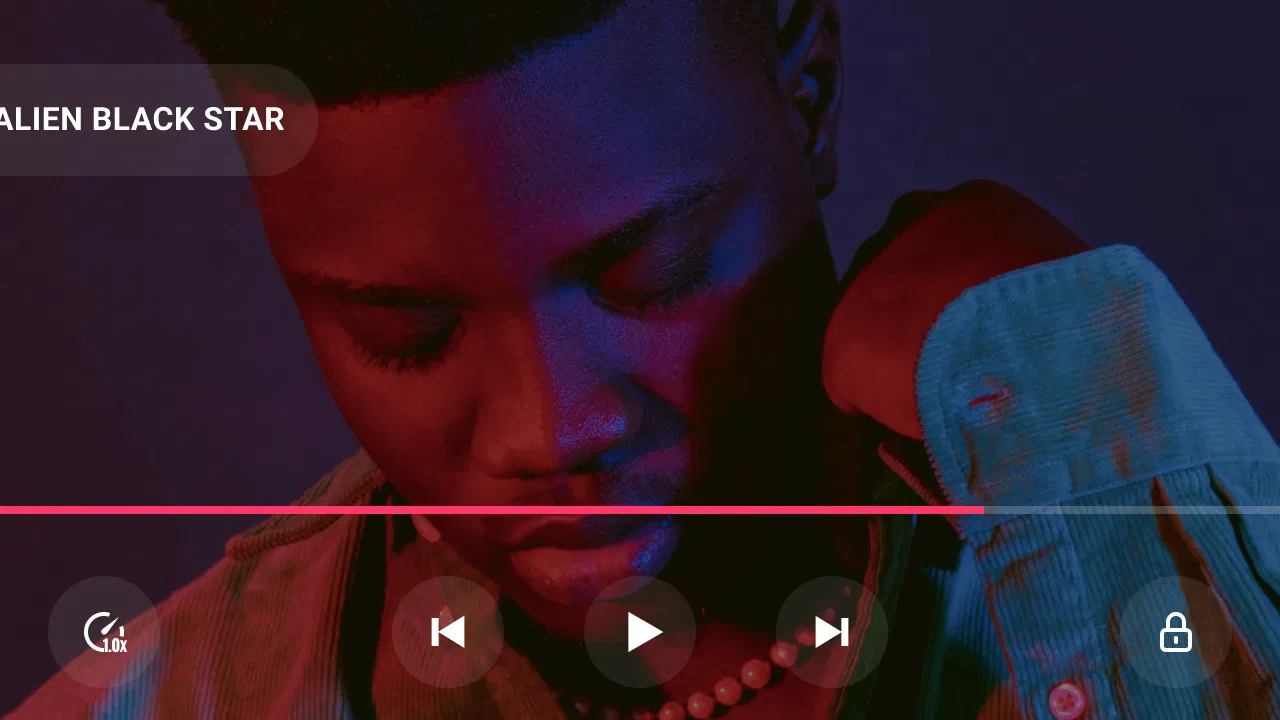
Lark Video Player
- 4.3
- Rating
- 10.00M
- Installs
- Free
- Price

 Analysis by App-foxy
I approached Lark Video Player as the kind of app you open when you want a video to play immediately, without building a complicated media library first. It is a free video player and editor-category app from Lark Player Studio - Video, MP4 & Music Player, aimed at watching local videos, handling high-definition files, and turning video content into audio playback. My first impression was practical rather than flashy: its value depends on how much you want from a straightforward mobile player.
The app is listed for everyone and works on Android devices running version 5.0 or later. That broad compatibility makes it approachable for people using older phones, although playback quality will still depend on the phone’s hardware and the actual file being opened. The current version is 1.32.7, and its 4.6 average from roughly 59 thousand ratings suggests that many users find the basic experience dependable. It has also passed the ten-million-install mark, so this is not an obscure player that feels experimental.
Getting from installation to the first successful video
I’d start with a short video already saved on your phone, then check that it appears and plays before moving on to a larger file. That simple first test helps separate a setup issue from a demanding or damaged video, and makes it easier to judge whether Lark Video Player fits your everyday viewing.
You May Also Like

 Blood Strike: 2.5 Anniversary
Blood Strike’s Loadouts Turn Every Drop Into a Tactical Gamble
A close look at Blood Strike’s custom loadouts: how fast access to signature weapons reshapes its battle royale rhythm, rewards preparation, and narrows the gap between fights.

 Pandora - Music & Podcasts
Pandora’s Music Is Easy to Start, but Harder to Recover
Pandora’s strength is its low-effort path from a seed to a station. Its weak spot is how much confidence it asks you to place in connection, setup, and quiet recovery.

 8 Ball Pool
 Is Built on Rivalries, Rematches, and Routine
A close look at the rivalries, rematches, shared routines, and unanswered safety questions that turn a quick pool match into a persistent mobile community.

 Samsung Music
’s Quiet Strength Is Playing What You Already Own
Its reach comes less from spectacle than from dependable access to a personal library. That simplicity is both the app’s strongest retention engine and its ceiling.

 AccuWeather: Weather Radar
AccuWeather Review: A Quick, Clear Forecast for Everyday Decisions
For everyday plans, the best forecast is the one you can understand quickly. AccuWeather makes rain timing, radar, and local conditions easy to act on, with a few trade-offs.

 Hill Climb Racing
Why Hill Climb Racing Still Turns Crashes Into One More Run
A tiny car, a bumpy hill and one more upgrade: Hill Climb Racing keeps resurfacing because its simple chaos makes every near-miss feel personal.
More From Our News Desk



What to expect when you open it
The main purpose is easy to understand: find a video stored on the phone, tap it, and watch. The app is positioned around offline playback, including HD and 4K material, support for major video formats, sharing, and playing video as MP3 audio. That combination makes it more useful than a bare file opener, especially if your phone’s default gallery is awkward with video files.
I would not install it expecting a full desktop-style editing suite. The category label includes video players and editors, but the strongest reason to try this app is playback and media handling. If you need a timeline with detailed cuts, layered effects, color correction, or professional export controls, a dedicated editor will be a better match. Here, the sensible expectation is quick access to personal clips, downloaded lessons, recordings, music videos, and other files already on the device.
The first useful decision is where your videos are located. Files saved in the usual camera or download folders are the easiest starting point. If a clip was received through another app, moved to removable storage, or placed inside an unusual folder, it may take a little more browsing before it appears where you expect. That is not a reason to abandon the player, but it is worth remembering if the opening screen looks empty.
A calmer first setup
After installing, I recommend beginning with one short, familiar video rather than testing a large collection immediately. This quickly tells you whether the file is visible, whether sound is working, and whether the phone can handle the chosen quality. Starting small also makes it easier to understand the app’s controls without confusing a file problem with an app problem.
When the player asks for access to media, I would allow it only if you want the app to find videos stored on the device. That permission is central to a local player’s job. If access is declined, the app may not be able to build a useful video list, so a blank or incomplete library can sometimes be explained by the setup choice rather than a missing file.
Once your media is visible, look through the library before changing anything else. A useful habit is to identify the folders that contain your regular viewing material. This helps you avoid repeatedly hunting through unrelated camera clips or temporary downloads. It also gives you a simple way to separate everyday viewing from files you only opened once.
I found that the most reassuring first test is a normal MP4 recorded on the same phone. If that plays correctly, move on to a higher-resolution file. This two-step check is more informative than immediately opening a demanding 4K video. A high-resolution file can expose storage, decoding, or heat limitations that have nothing to do with ordinary playback.
The first meaningful action: watch, then reuse the file
The first successful action should be more than seeing a thumbnail. Open a video, confirm that the picture and sound stay together, and then try the workflow you actually care about. For a parent, that might mean playing a downloaded cartoon offline. For a student, it could be revisiting a recorded lecture. For someone who keeps music videos on a phone, it may be switching from watching to listening.
The video-to-MP3 option is particularly useful when the visual part is no longer necessary. I can imagine using it with a talk, a rehearsal recording, or a personal clip where the audio matters more than the image. The trade-off is that an audio version is not a substitute for a proper music-management system. It is best understood as a convenient way to reuse a video’s sound, not as a complete replacement for a dedicated music service.
Sharing is another practical step to test early. A clip may play perfectly inside the app but still be inconvenient to send if it is very large or stored in an unexpected location. I would first share a short file, check which installed app receives it, and only then attempt a longer recording. This avoids wasting time when the real limitation is the recipient service’s file handling rather than the player itself.
A realistic everyday example would be a family trip. I might record several clips during the day, return to the hotel without an internet connection, and use the player to review them. Later, I could share one short highlight and keep the rest for offline viewing. If I wanted to listen to the audio from a spoken recording while doing something else, the MP3 workflow could make that file more convenient.
How HD and 4K playback should be approached
Support for HD and 4K is useful, but it should not be read as a promise that every phone will handle every file smoothly. Resolution is only one part of playback. Encoding, bitrate, storage speed, available memory, and the device’s decoder all affect the result. On an older handset, a standard HD file may be a better everyday choice than a demanding 4K recording.
My practical advice is to test a few seconds near the beginning, middle, and end of a large file. Some playback problems appear only after seeking or after the device has been working for a while. If a clip stutters, try closing other demanding apps, moving the file to faster internal storage, or choosing a lower-resolution copy. The player can make a compatible file accessible, but it cannot remove the physical limits of the phone.
There is also a storage trade-off. Keeping high-resolution videos offline is convenient, but those files consume space quickly. I would use the app as a viewing tool rather than allowing every large clip to remain permanently on the device. A simple routine of reviewing, sharing, and removing unwanted copies keeps the library easier to navigate and reduces the chance of confusing duplicates.
Common points of confusion
The first likely confusion is assuming that every video on the phone will appear automatically. A file may be hidden in a folder the app does not present prominently, may still be downloading, or may use a format that the device cannot decode properly. Before blaming the player, I would check that the file opens elsewhere, that it is fully saved, and that the app has access to local media.
Another common misunderstanding concerns offline playback. Offline means the video is available on the device, not merely visible in a cloud folder or inside a streaming application. If the original service keeps the content inside its own protected environment, a separate local player may not be able to open it. Lark Video Player is most useful with files that are genuinely stored on the phone.
People may also expect the app to behave like a streaming platform because it has a media-library interface. The difference is important: a local player organizes and plays files you already have. It does not automatically provide a catalog of online shows or replace a subscription service. That distinction makes it a good companion to streaming apps, not necessarily an alternative to them.
The MP3 function can create a similar expectation. Converting or playing the audio from a video is convenient, but the result may still reflect the original recording. If the source has background noise, uneven volume, or poor microphone quality, changing the playback form will not improve the recording itself. I would use the feature for convenience, not assume it performs studio-quality audio restoration.
Where it fits beside the usual alternatives
Compared with the default gallery, this app makes more sense when video playback is a regular task rather than an occasional tap. A gallery is excellent for quickly reviewing camera photos and clips, but it may not offer the same emphasis on broad format support, offline video use, or extracting audio from video. The dedicated player gives those tasks a clearer home.
Compared with a highly customizable media player, the appeal here is a shorter learning curve. Advanced alternatives may expose more technical controls, network playback options, subtitle settings, audio tracks, or codec details. That depth is valuable for enthusiasts, but it can make a first-time user feel as if every video requires troubleshooting. I would choose Lark Video Player when I want a friendlier path from file to playback, and a more advanced player when I need fine control over unusual media.
It also sits differently from a full video editor. An editor is the right choice for trimming a long recording, adding titles, arranging multiple clips, or exporting a finished project. This app is better when the goal is to watch, organize, share, or reuse existing media with minimal preparation. Installing both types of app can be sensible because their jobs overlap only partially.
Useful habits after the first day
One habit I recommend is testing important files before leaving home. If you plan to watch a lesson during travel or show a recording at a meeting, open it once while you still have time to replace a damaged or incompatible copy. Offline convenience is only valuable when the file has already been checked.
A second habit is keeping one known-good sample file. I use a short video that I know should play normally as a reference whenever a new file causes trouble. If the sample works but the new file does not, the issue is probably connected to that file’s encoding, location, or condition. This simple comparison prevents unnecessary reinstalling and makes troubleshooting much faster.
A third useful workflow is separating viewing from sharing. I would first watch the original, then decide whether the recipient needs the full video, a shorter version from another app, or only the audio. That avoids sending a large file when a smaller, more useful format would do. The player’s sharing and MP3 capabilities are helpful here, but the best result still comes from choosing the right output for the situation.
For people with many recordings, I would also review the library occasionally instead of treating it as permanent storage. Rename or move files using the phone’s normal file tools when necessary, remove duplicates, and keep frequently used material easy to find. The app can make playback convenient, but a tidy storage system has a bigger effect on long-term usability than any single control.
Who should use it, and who should skip it
I think this app is a good fit for someone who wants a free local video player that handles everyday files, supports offline viewing, and offers a practical way to listen to video content as audio. It is especially approachable for first-time users who do not want to learn a large set of technical playback settings before watching a clip.
It is also useful for families, students, travelers, and anyone who keeps personal videos on an Android phone. The everyone age rating makes it broadly accessible, although adults should still manage which files children can open on a shared device. The app’s broad adoption and 4.6 average are encouraging signs, but my recommendation still depends on the user’s needs rather than popularity alone.
I would skip it if your main requirement is professional editing, advanced subtitle and audio-track control, network streaming from specialized servers, or a carefully managed music library with deep tagging tools. In those cases, a dedicated editor, enthusiast-grade media player, or music app will likely be more satisfying. Installing this player will not turn a basic phone library into a full production workstation.
My final recommendation
After using it as a local media tool, I see Lark Video Player as a sensible middle ground. It is more purposeful than relying only on a phone’s gallery, while remaining less intimidating than a player built around technical customization. Its best moment is simple: I have a video already saved, I want it to play, and I may want to share it or keep its audio.
The smoothest path is to grant the needed media access, begin with a familiar local file, test a higher-quality clip only afterward, and learn the sharing or MP3 workflow through a small recording first. Those steps make the first experience predictable and reveal whether the app matches your phone and habits.
For me, the recommendation is positive with a clear boundary: choose it for accessible offline playback and convenient media reuse, not for advanced production work. Since it is free and supports Android 5.0 or later, it is easy to try without a financial commitment. If your everyday need is simply to open, watch, listen to, and share local videos, this player is worth keeping on your device.
FAQs for Lark Video Player
01What are the key features of Lark Video Player?
Lark Video Player offers a variety of impressive features, including support for multiple video formats, HD video playback, and a user-friendly interface. It also includes features like subtitle support, video speed control, and a playlist manager. These features make it versatile and suitable for all types of users who enjoy watching videos on their devices.
02Is Lark Video Player free to use, or does it have in-app purchases?
Lark Video Player is free to download and use, offering a range of features without any cost. However, it may offer in-app purchases or ads to access premium features or remove ads. Users should check the app’s description on the Google Play Store or Apple App Store for detailed information about any costs.
03Does Lark Video Player support all video formats?
Lark Video Player is designed to support a wide range of video formats, including popular ones like MP4, AVI, MKV, and more. This makes it a versatile choice for those who have diverse video collections. However, users should verify specific format support by checking the app’s specifications or user reviews.
04How does Lark Video Player handle subtitles?
Lark Video Player offers robust subtitle support, allowing users to load subtitles in various formats such as SRT and SSA. The app provides options to customize subtitle appearance, including font size and color, ensuring a personalized viewing experience. It’s particularly useful for users who watch foreign-language films or shows.
05Can Lark Video Player stream videos from the internet?
Yes, Lark Video Player has the capability to stream videos from the internet. It supports streaming through URLs, which allows users to watch online content directly. This feature is ideal for those who enjoy streaming services or accessing content from the web, enhancing the app’s versatility and appeal.
Pros
- Smooth playback with minimal buffering.
- Supports a wide range of video formats.
- User-friendly interface and easy navigation.
- Customizable playback settings and themes.
- Minimal ads for an uninterrupted experience.
Cons
- Limited advanced features for power users.
- Requires internet for initial setup.
- No built-in casting to TV options.
- Occasional crashes on older devices.
- Limited subtitle customization options.

Lark Video Player
Gallery